Collect and design
Open PhotoBaker in your browser to prepare the event and choose the photos you want to print.
- Hashtag, dates and photo sources
- Manual or automatic approval
- PNG template and photo placement
- Separate event archives


PHOTOBAKER PRINTSTATION
PrintStation receives jobs from PhotoBaker and sends them to the selected printer on your Windows computer. Use the web dashboard to set up events and prepare photos, and the application to manage printing at the venue.
A PhotoBaker account is required. Create one for free · Access options and pricing
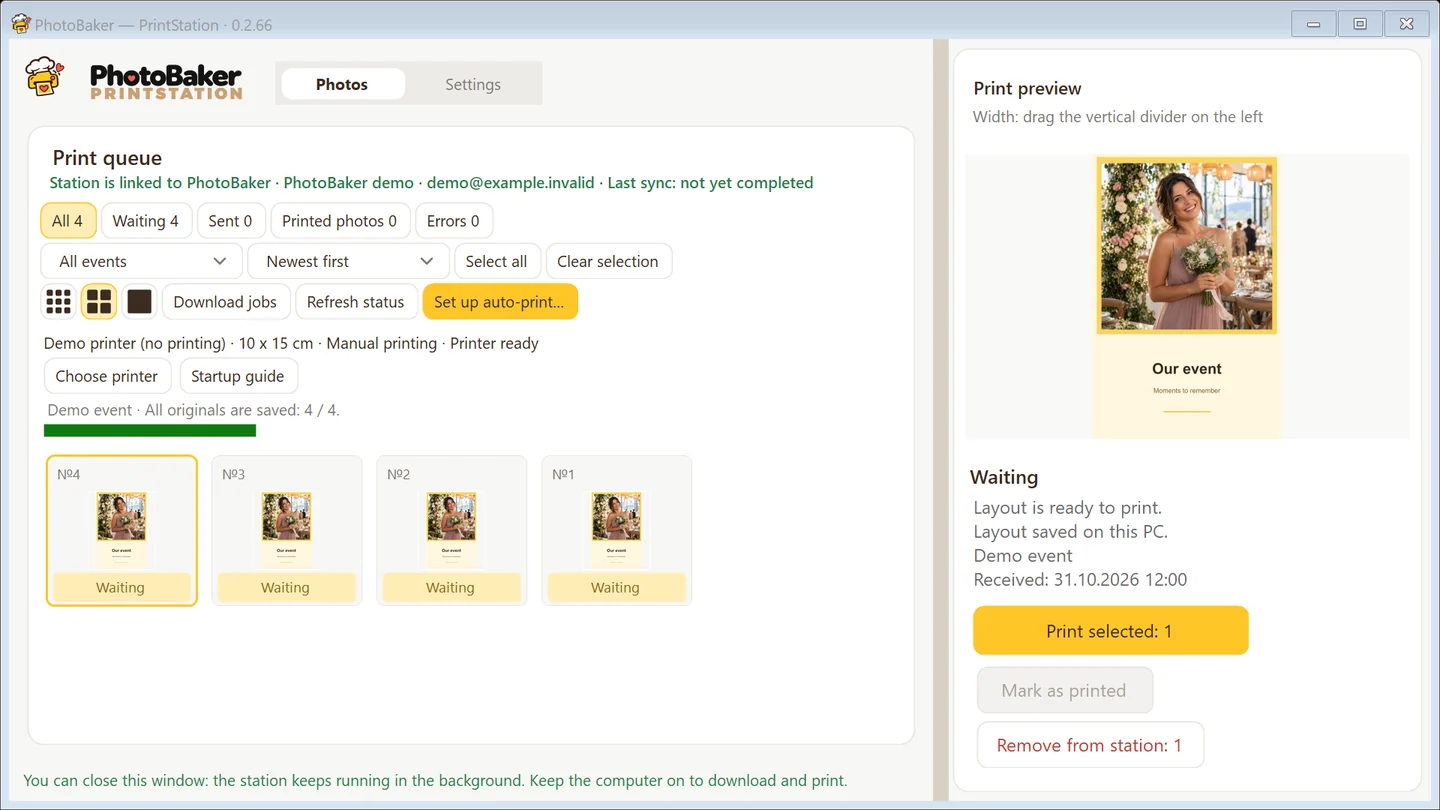
Two parts of one workflow
The web dashboard manages your photos.
PrintStation manages printing at the venue.
Open PhotoBaker in your browser to prepare the event and choose the photos you want to print.
Connect the application to your dashboard. Set up the printer and manage jobs at the venue.
Try printing for free with no time limit. Free prints carry the PhotoBaker graphic watermark; after payment confirmation, new prints are generated without it. Sending a job to the Windows queue does not confirm that paper has been printed. The operator at the venue checks the physical output.
Before your guests arrive
Do not leave your first print until the event starts. Test the entire workflow in advance.
Download the current PrintStation installer using the link above and run it on a 64-bit Windows computer. Connect a physical printer, install its driver and prepare your paper.
Create a connection code in the dashboard and enter it in PrintStation settings. You do not normally need to reconnect each time you start the application.
In Settings, choose your printer and paper size, then check scaling and offsets. Create a test print and check the paper output yourself. In Photos, select an event: print selected jobs manually, or configure automatic printing for new jobs only or for both new and waiting jobs.
Prepare your computer
The software does not include equipment. One PrintStation can be used at a time.
Create an event in your dashboard, save a layout and connect your sources. PrintStation needs access to PhotoBaker to retrieve new jobs and originals.
If your printer is missing from the list, check its connection and Windows driver. A PDF printer cannot replace a physical photo printer for automatic printing on paper.
If a job was sent but no print appeared, check the Windows queue, paper and printer status. Before sending it again, make sure it is no longer in the queue to avoid a duplicate.
Sending a job to the Windows queue does not confirm paper output. The operator checks the actual result. Changing the printer, paper, scaling or offsets stops automatic printing: check a test print, then enable it again.
Before your first print
Sign in to your dashboard, connect PrintStation and test the layout and printer before the event.